Plan and train
AI maps and routes
Generate a route, save it and follow it with turn cues on your wrist.
Generate a route
- 1
Before a run, open Find a Route from the workout setup screen, or from a scheduled workout in the Plan tab.
- 2
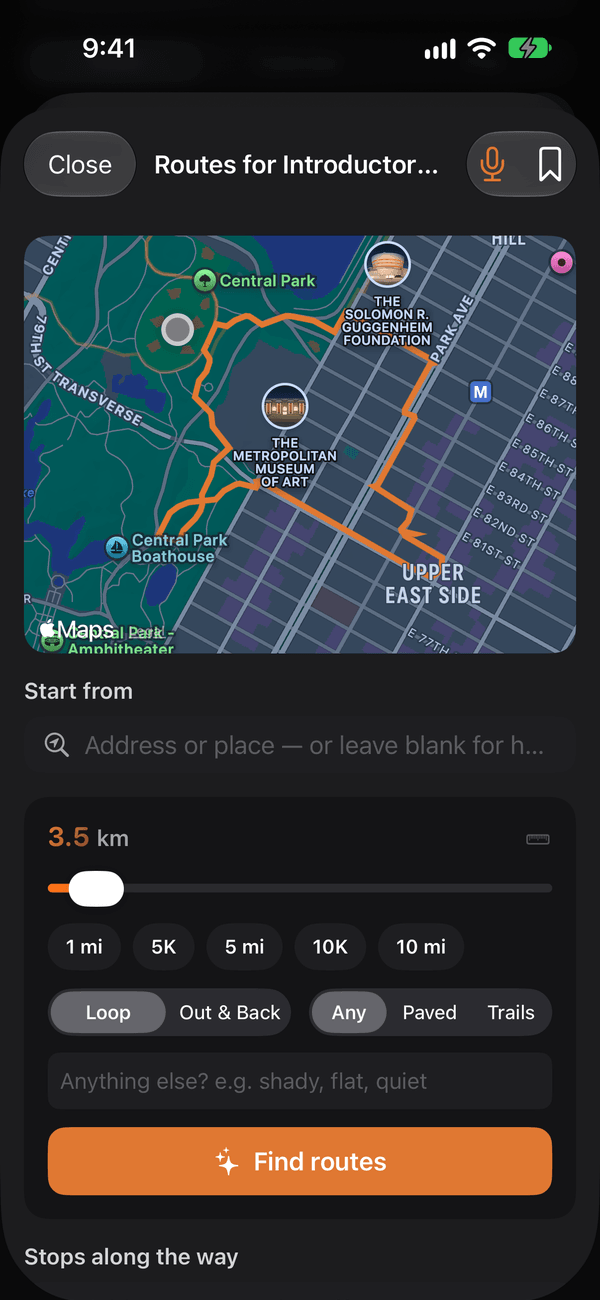
Set the distance and the kind of route (Loop or Out & Back, any surface, paved or trails), then tap Find routes.
- 3
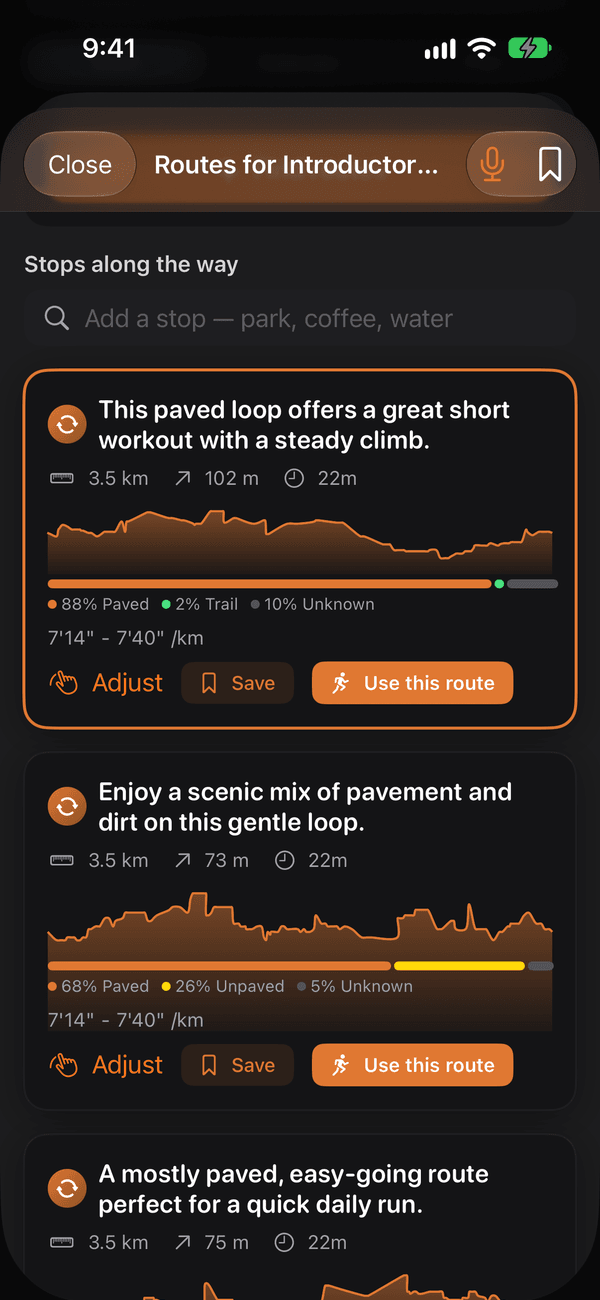
Each suggestion shows distance, climb, time, an elevation profile and how much of it is paved. The selected one is drawn on the map. Choose Use this route, Save it for later, or Adjust it.
Routes are generated for the place you are in, so allow location access first.
Follow a route
Start the workout with a route selected and the map shows your position against the line. Spoken turn directions come from the audio coach when it is on.
Turn cues on your wrist
With an Apple Watch, the route can be followed from the wrist: the watch shows the route and taps you before turns. Setup is the same as for any phone-started workout, so read the Apple Watch guide first.
Routes and privacy
The start and end of your routes can be hidden from other people with privacy zones. Set them up in Account and privacy.
Troubleshooting
| What you see | What to do |
|---|---|
| No routes are suggested | Try a shorter distance or a different route type. Very long distances in sparse areas may not produce a loop. |
| The route looks jagged or cuts corners | Routes are drawn for display and simplified on long runs. Follow the actual streets and trails; the line is a guide. |
| My position is off the line | Wait for a strong GPS fix before you start, ideally outdoors with a clear view of the sky. |
Still stuck?
Email officialvictoryfitness@gmail.com with your phone model, app version and a screenshot, and we will help. You can also read the pricing FAQ.