Devices and data
Audio coaching
Spoken updates, pace and cadence alerts, and how to tune them.
Turn on spoken updates
- 1
Go to Profile, then Settings, then Audio Coach.
- 2
Switch the coach on and choose which updates you want and how often you hear them.
- 3
Start a workout with headphones in or the phone volume up. Updates play over your music.
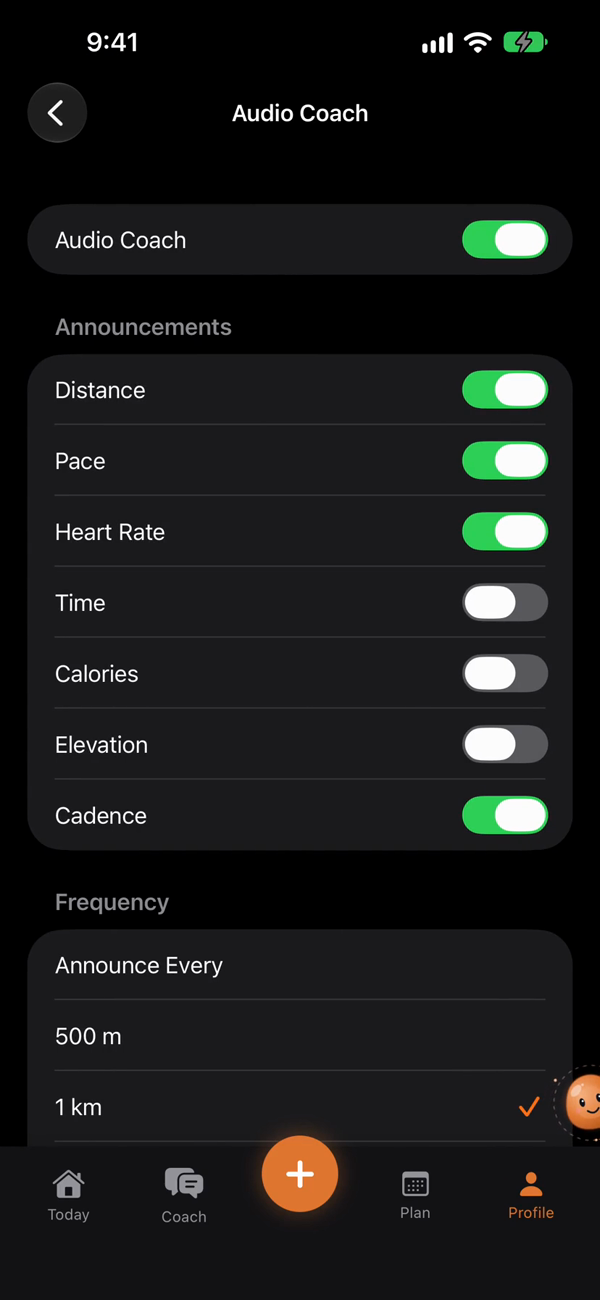
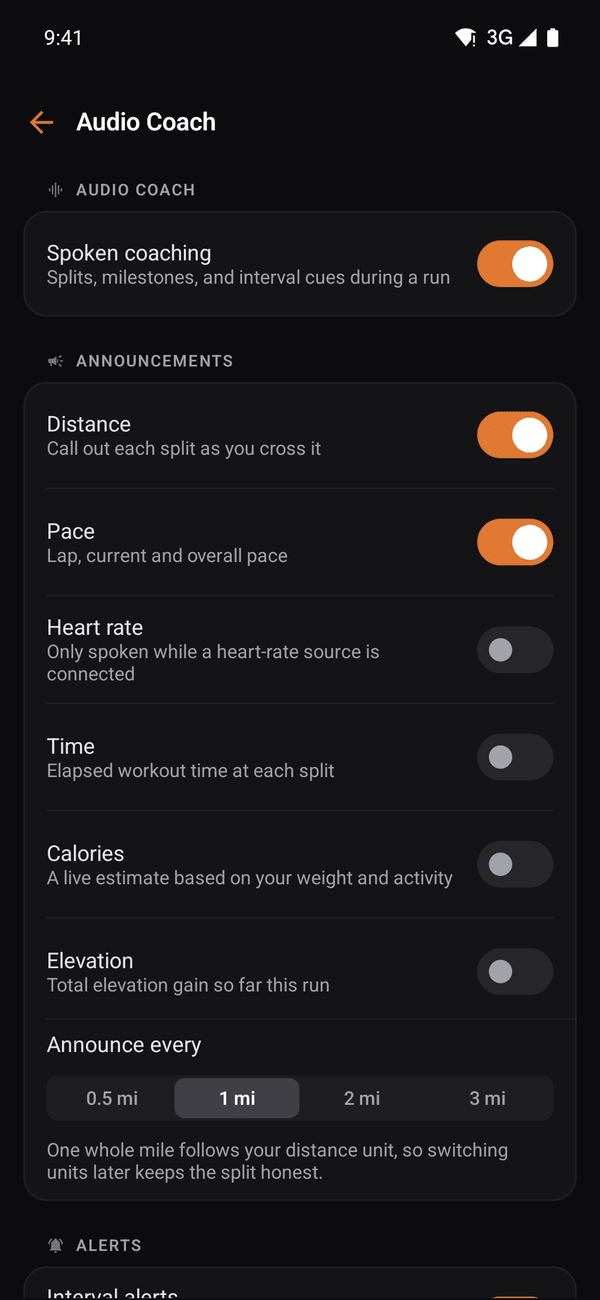
You can change the coach's name under Coach Name in Settings.
What it says
- Distance and pace updates are on by default.
- Heart rate, time, calories, elevation and cadence updates are available and start off.
- You pick how often updates are spoken, for example per kilometer or per mile.
- Short motivational nudges can be switched on or off.
Pace and cadence alerts
Set a target pace or cadence and the coach warns you when you drift away from it. Both alerts are off until you turn them on and enter a target. During a planned workout, the targets from your plan are announced as each interval starts.
Ask by voice
Voice commands let you ask for your current pace, distance, heart rate or cadence, how much is left, or what interval you are on. They are off by default and you choose how to trigger them in Audio Coach settings. On Apple Watch, cues arrive as haptic taps as well; see the Apple Watch guide.
Troubleshooting
| What you see | What to do |
|---|---|
| No audio during the workout | Check that the Audio Coach is on, the phone is not muted and the volume is up. Bluetooth headphones must be connected before you start. |
| It speaks too often | Lower the frequency or turn off the categories you do not want in Audio Coach settings. |
| Updates stop when the screen locks | Keep location access set to allow while using the app, and do not force-close the app during the workout. |
Still stuck?
Email officialvictoryfitness@gmail.com with your phone model, app version and a screenshot, and we will help. You can also read the pricing FAQ.