Share and connect
Share Studio
Turn a workout into a card or a ready-to-post caption.
Open Share Studio
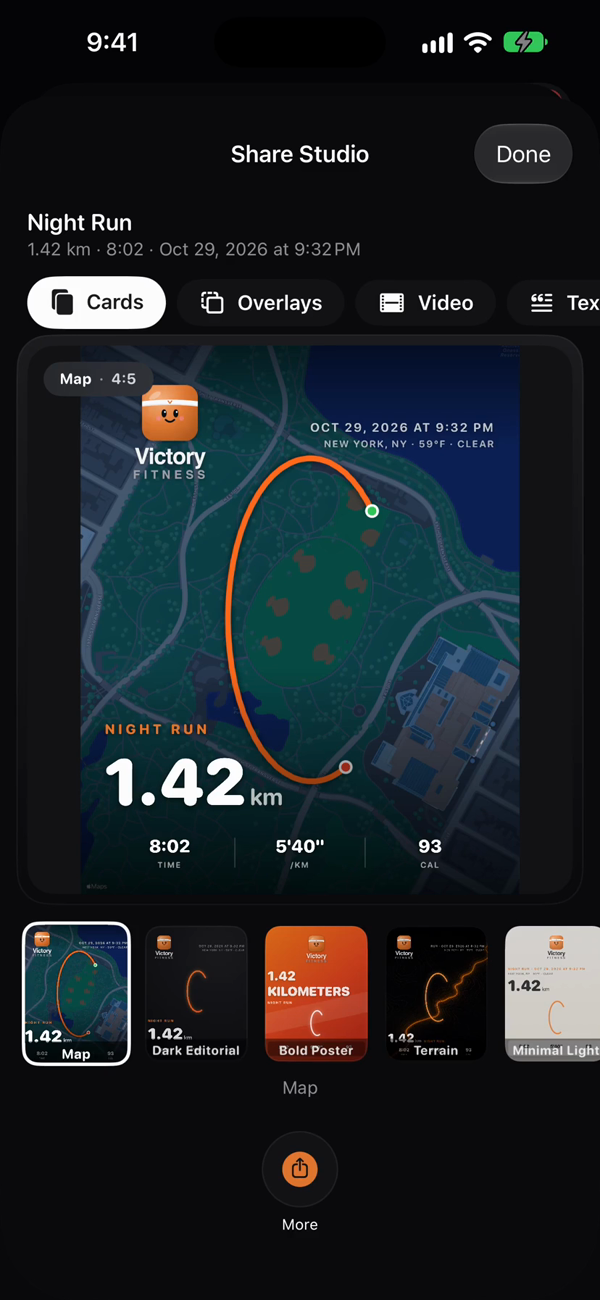
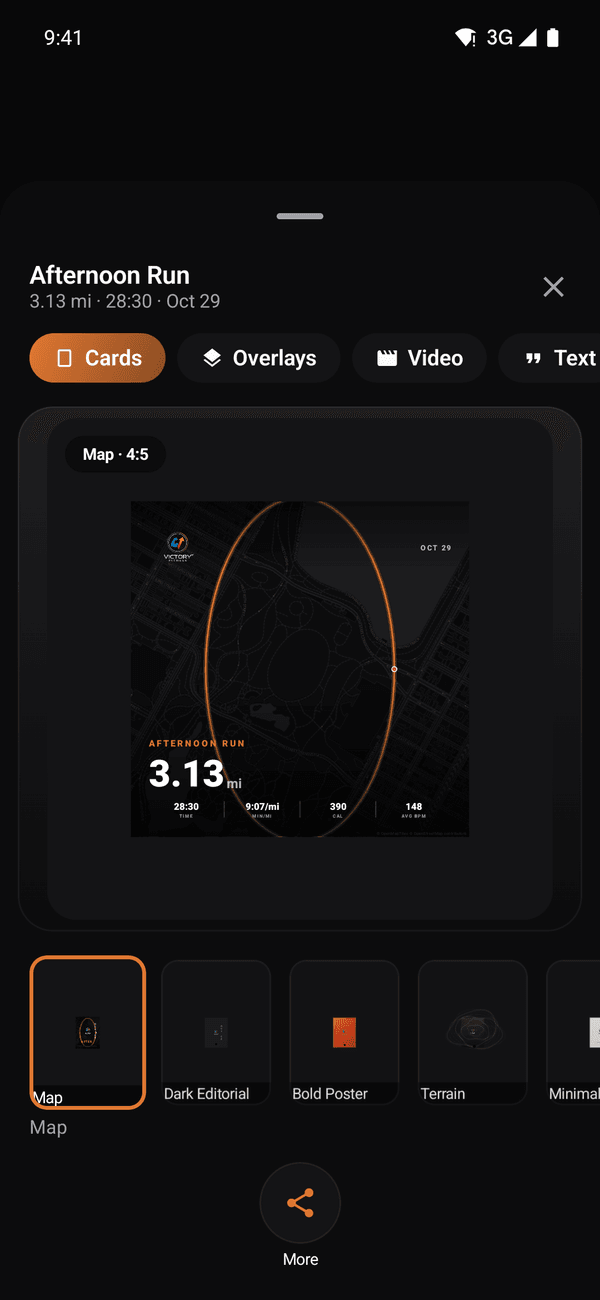
Finish a workout, or open one from your history, and tap the share button. Share Studio opens on Cards, with Overlays, Video and Text alongside it. This guide covers Cards and Text.
Cards
Cards are images built from your workout: distance, time, pace and a map. Swipe through the styles, pick one, and save it or send it straight to Instagram, Messages or anywhere else on your phone.
Text
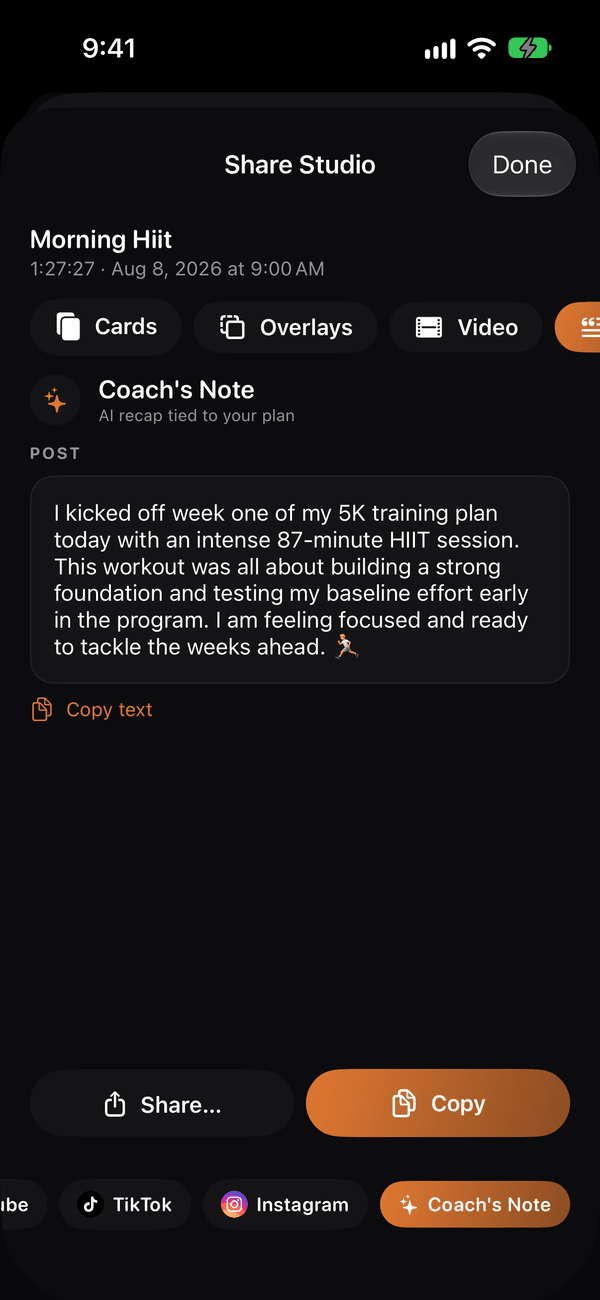
The Text tab writes a title and caption for you. Pick where you are posting along the bottom (YouTube, TikTok, Instagram) and the text fits that platform. If you follow a training plan, titles mention the plan week, and the Coach's Note option writes a short recap tied to your plan. Edit the text, then copy or share it.
Troubleshooting
| What you see | What to do |
|---|---|
| The Text tab is empty or still loading | Captions come from the server, so check your connection and reopen Share Studio. |
| My map shows a gap at the start | Your privacy zones hide the start and end of the route on cards you share. Change them in Account and privacy. |
| The share sheet did not open | Close and reopen Share Studio, and make sure the workout has finished saving. |
Still stuck?
Email officialvictoryfitness@gmail.com with your phone model, app version and a screenshot, and we will help. You can also read the pricing FAQ.